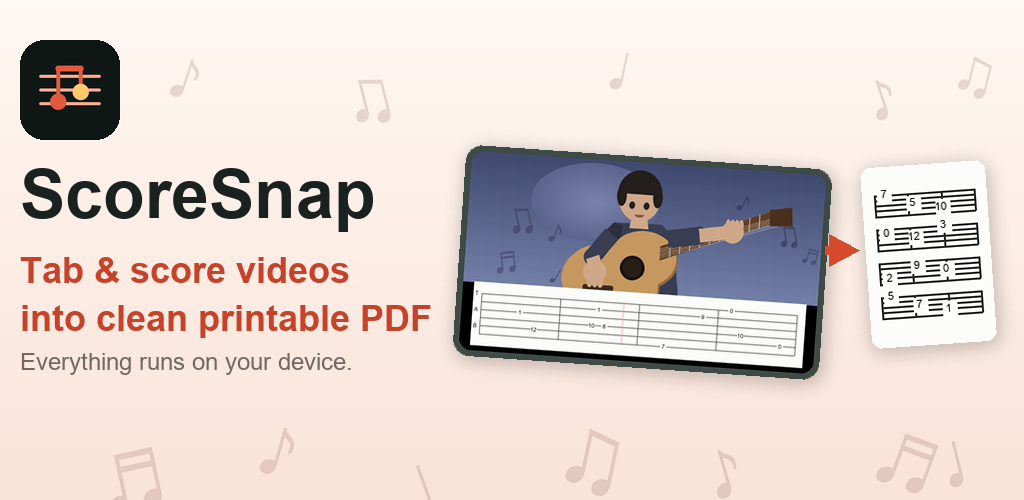
ScoreSnap: a video of a guitarist with a tab strip, turning into a printed page of score lines

ScoreSnap

ScoreSnap turns a video of scrolling tab or sheet music — or a set of photos — into a clean, printable PDF or image set. Point your camera at a screen while it plays, or import a video you already have, and ScoreSnap does the rest.

Get it on Google Play

Step by step

Two taps get you a usable result. The rest is there for the videos that fight back.

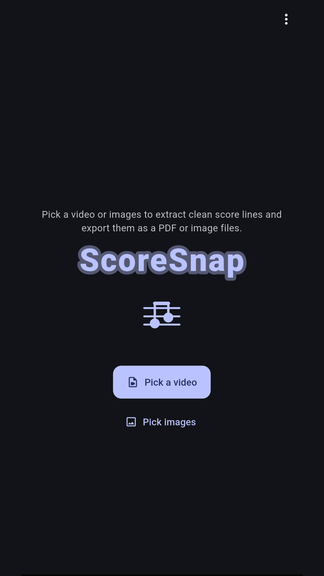
ScoreSnap title screen with Pick a video and Pick images

1Pick a video, or a set of photos

Any video the device can play will do — one you recorded off a screen, or one you already have on the phone. Photos work too, and each photo becomes one score line.

Nothing is uploaded. The file stays where it is and is read on the device.
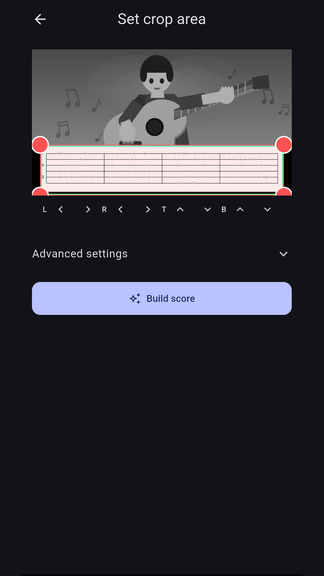
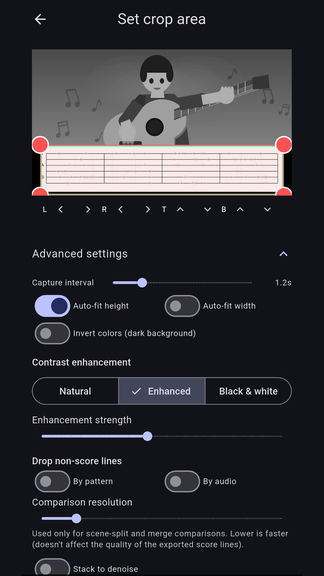
Setting the crop area over the tab strip

2Put the box around the score

ScoreSnap looks at the first frame and proposes a crop box around the bright band where notation usually sits. Most of the time it lands on the right place and you can go straight on.

If it doesn't, drag the corners, or nudge each edge by one pixel with the arrow buttons. A magnifier follows your finger so the edge stays visible while you move it.

Advanced settings: capture interval, auto-fit, contrast

3Leave the settings alone, or don't

Capture interval, auto-fit, and contrast all have defaults chosen to work without being touched. Contrast has three modes: natural, enhanced, and black & white.

Everything here is optional. The point of the panel is that when one video misbehaves, you have somewhere to go.

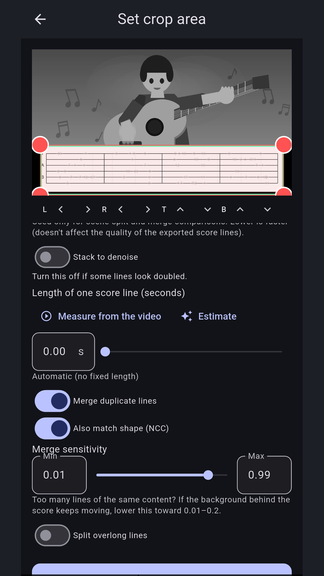
Settings for stacking, line length and merging

4Fix the things that go wrong

Lines look doubled? Turn off frame stacking. The same line appears twice? Lower the merge sensitivity. Intro logos in the result? Turn on dropping non-score lines.

Each switch is written as a symptom, not as a parameter name, because that is how you meet them.

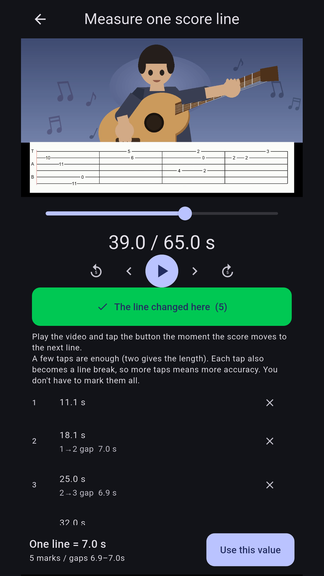
Playing the video and tapping to mark where each line changes

5When the video won't cut cleanly, tell it the rhythm

Some videos never change scene properly — the background keeps moving, or the lighting drifts. Play the video here and tap the button each time the score moves to the next line.

Two taps are enough to give the length of one line. Every extra tap becomes a line break of its own, so you can be as precise as you want. You never have to mark them all.

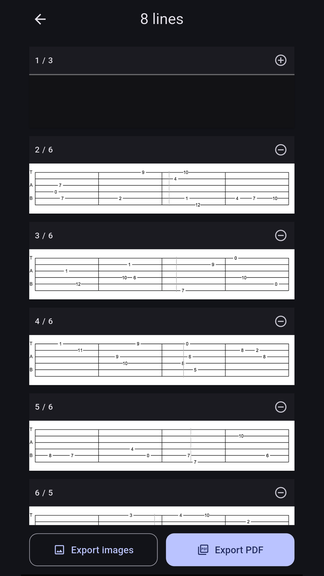
Turning individual score lines on and off

6Drop what isn't music

Title cards, outros and camera shots of the performer get picked up along with the notation. Switch them off here.

Switching a line off doesn't delete it — the thumbnail stays, dimmed, and one tap brings it back. Nothing you remove is lost.

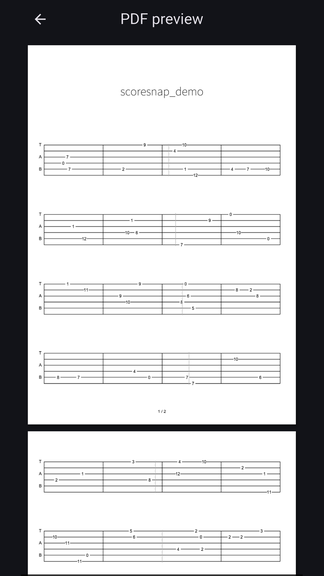
PDF preview showing the title and score lines on a page

7Lay it out and export

Portrait or landscape, three density presets, or set rows-per-page by hand with no upper limit. Add a title and page numbers.

Check the preview, then export as a PDF or as separate images. Print it, or put it on a tablet on the music stand.

Free and Pro

FreePro
Build the score from a videoYesYes
Full exports3, watermarkedUnlimited, no watermark
After thatFirst 2 pages onlyNo page cap
Crop area, auto-fit and contrastAutomatic onlyFull control, saved
AdsWhile a video is processedNone

Pro is a subscription with a 14-day free trial. You can see your results before deciding.

Your data

Videos, photos, and everything extracted from them are processed entirely on your device and are never uploaded anywhere. Free users see ads; both free and Pro use a subscription-status check. See the privacy policy (한국어) and the terms of use (한국어) for details.

Contact

Email: geekonissupport@gmail.com